The Pip parent dashboard shows how each of your children is getting on, topic by topic. It is included with every Pip Pro plan.
Set it up once in the app, then check it on any phone, tablet or computer.
- In the app: Parents' corner, then Settings, then Parent sign in.
- Follow the screens to link each child (up to 5).
- Open pip11plus.com/parent-account on any device to see their progress.
- Every topic sits in a zone: improving, needs work, slipping or comfort zone.
Set it up in five steps
You only do this once. You need Pip Pro on the device your child practises on.
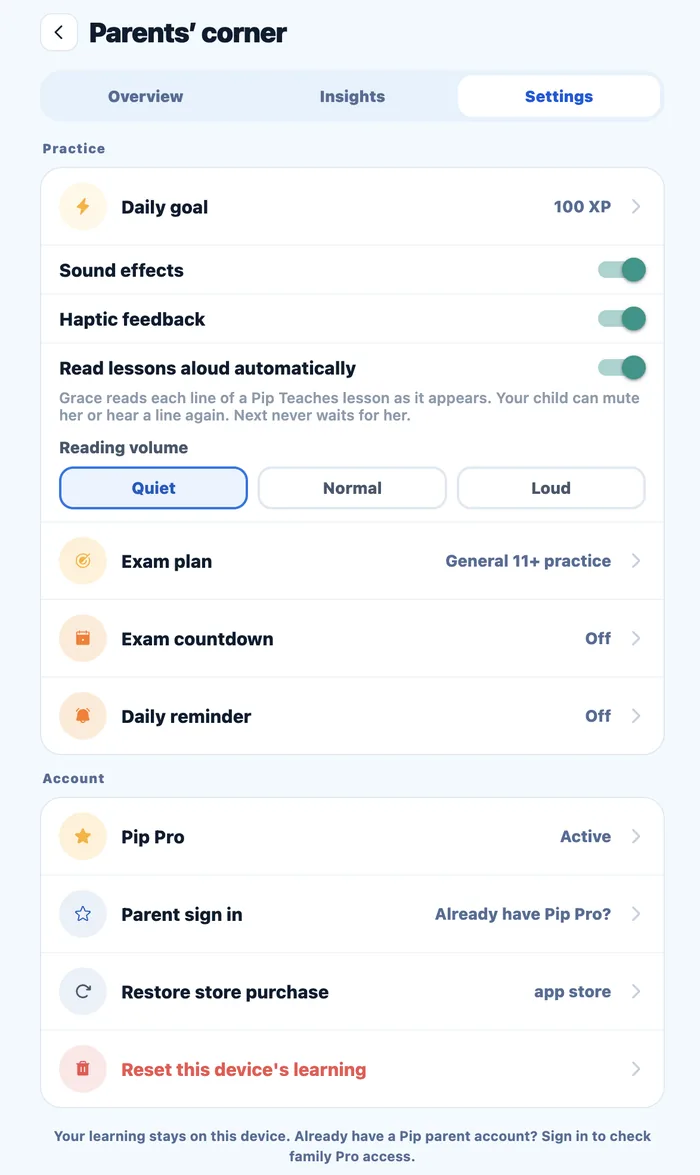
- 1Open Parents' cornerIn the Pip app, go to Parents' corner. This is the grown-ups' area, so your child's practice screens stay separate.
- 2Go to SettingsTap Settings. Under Account you will see your Pip Pro status and a row called Parent sign in.
- 3Tap Parent sign inTap Parent sign in (it says “Already have Pip Pro?” underneath) and follow the screens to sign in as the parent.
- 4Link your childrenChoose Link an existing learner, then pick each child who uses Pip on that device. Family Pro covers up to 5 synced learners.
- 5Open the dashboard on any deviceGo to pip11plus.com/parent-account on a phone, tablet or computer and sign in. You will see each linked child's Pro progress there.
Progress, mock-test history and drawings move across once the original device has finished syncing. If something looks missing, open the app on your child's device and tap Try sync now in the parent account screen.
The top of the dashboard
The screenshots below use Pip's built-in example data, so the children shown (Maya and Theo) are made up. Your dashboard looks the same, with your own children's names.
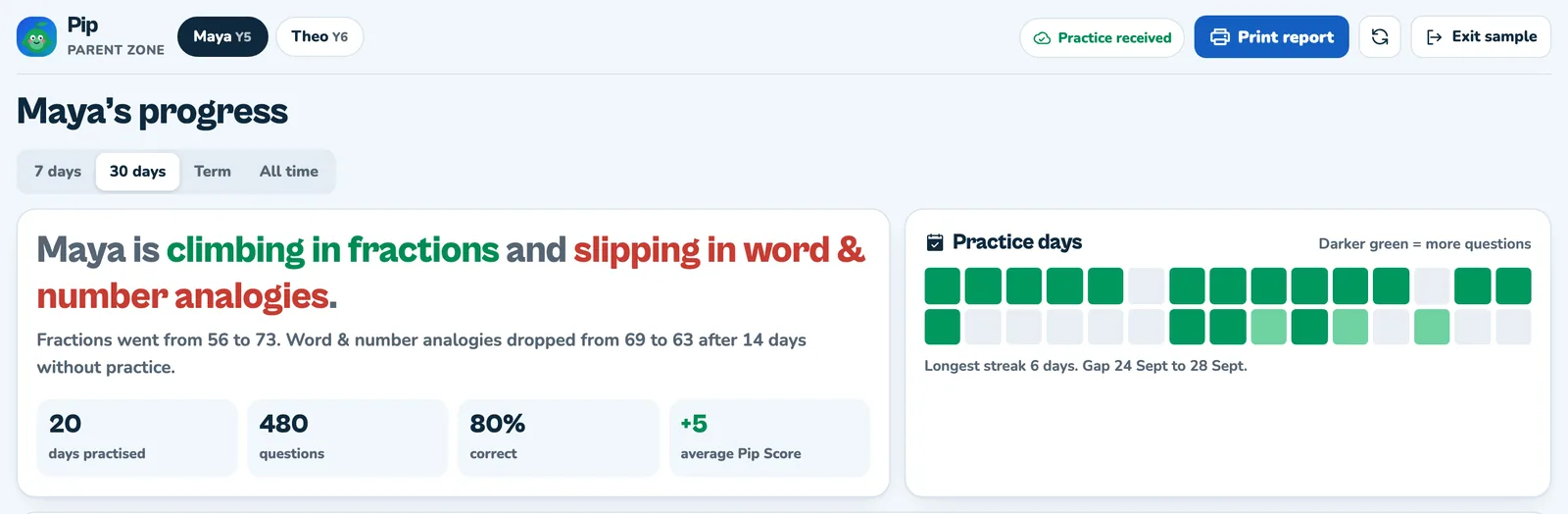
- 1Switch between children. Each linked child has a chip with their name and school year. Tap one to see their progress.
- 2Print report. Prints a clean copy of the whole report, covering every subject. Handy for a chat with a teacher or tutor.
- 3Time range. Choose 7 days, 30 days, this term or all time. Every change on the page is measured from the start of that range.
- 4The headline. One sentence telling you where your child is climbing and where they are slipping. Underneath, it gives the real numbers, from and to.
- 5Four stat tiles. Days practised, questions answered, the percentage correct and the change in their average Pip Score.
- 6Practice days. One square per day, and darker green means more questions. It also shows the longest streak and any gap of three days or more.
Where each topic sits
This chart puts every topic your child has tried into one of four zones. Across shows the Pip Score now, and up shows the change since the start of the range.
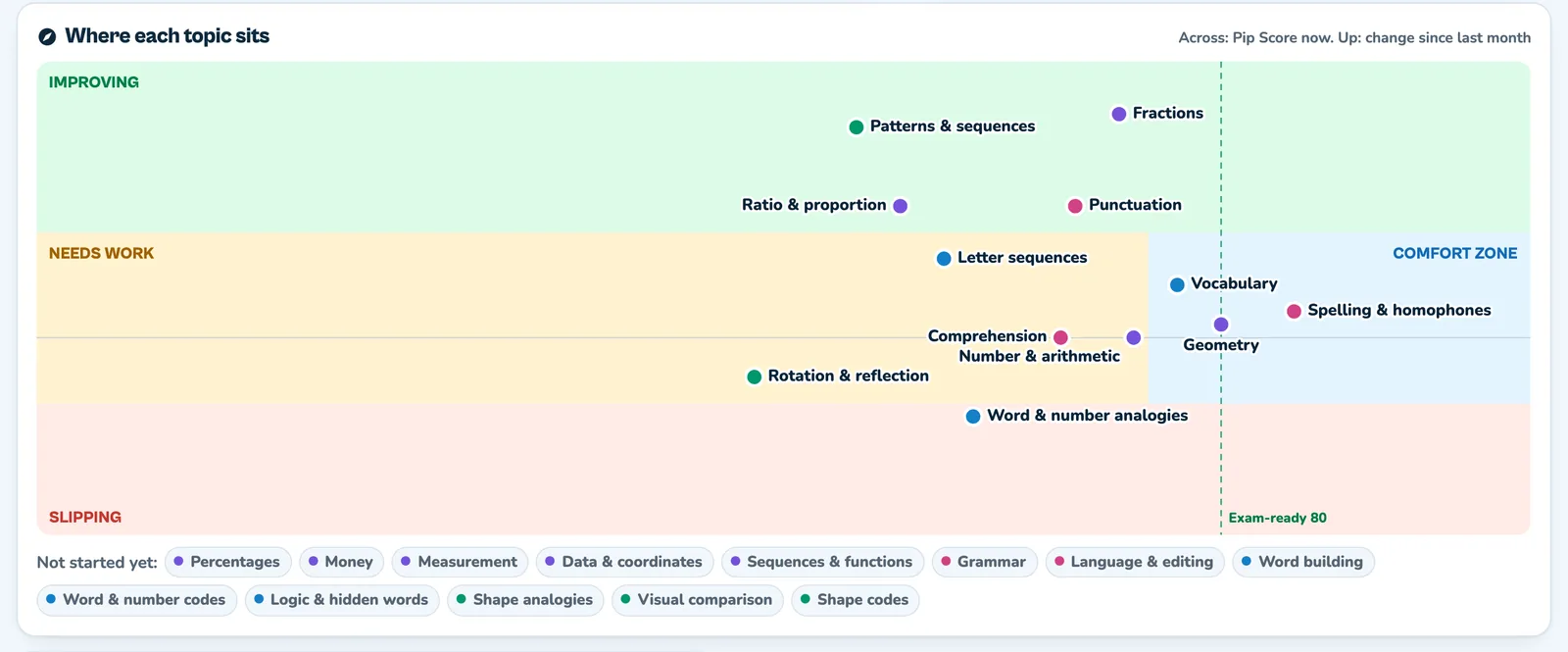
- Improving: the Pip Score has gone up by 8 points or more.
- Slipping: the Pip Score has dropped by 5 points or more, often after a break.
- Comfort zone: holding steady at a Pip Score of 75 or more.
- Needs work: holding steady below 75.
- Not started: topics your child has not tried yet, listed under the chart.
Subject tabs
Use the tabs to look at one subject at a time. The skill web, the growth chart and the topic table all change to match.

Skill web and growth over time
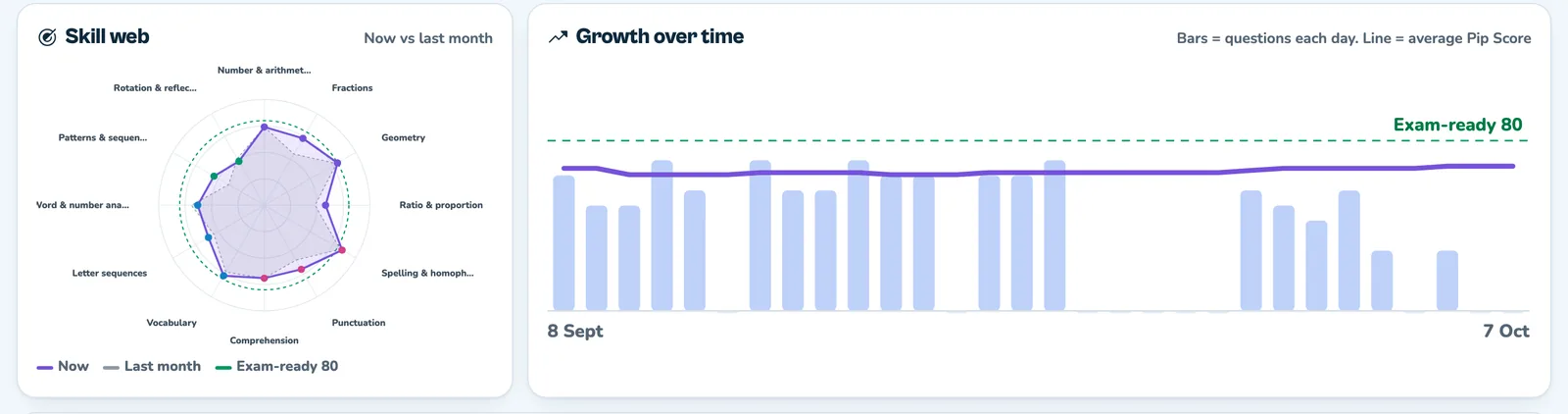
- 1Skill web. Shows up to 12 recently practised topics in one shape. The purple line is now, the grey line is the start of the range and the green ring is exam-ready.
- 2Growth over time. The bars are questions answered each day (each week for long ranges). The line is the average Pip Score, so you can see effort and progress side by side.
Every topic, in one table
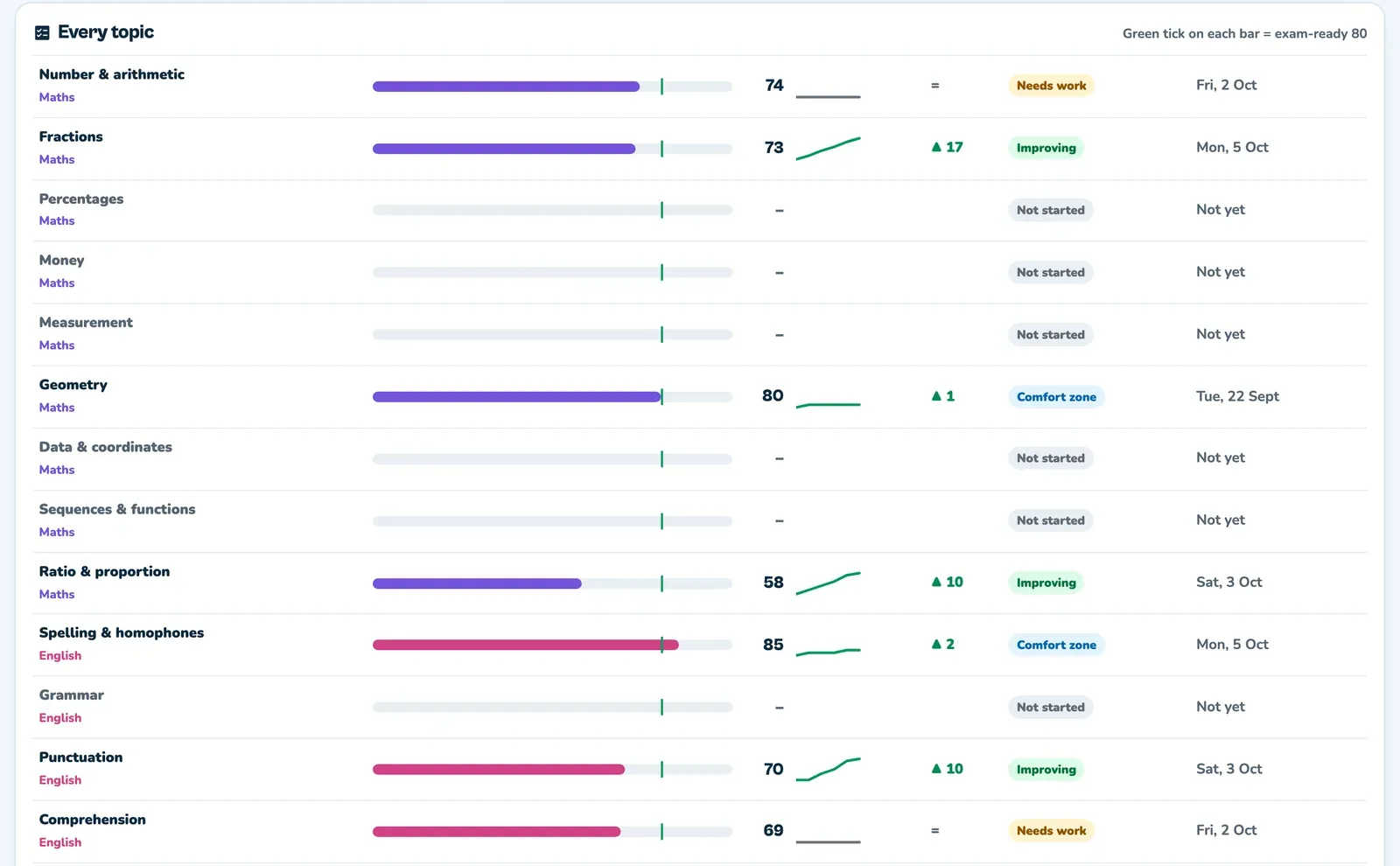
Each row is one topic, with its Pip Score, a small trend line, the change, its zone and when it was last practised. A green tick on the bar marks exam-ready.
What to do next, and workbooks
The dashboard turns the numbers into three short suggestions. Underneath, it points to Pip workbooks for the topics that need the most help.
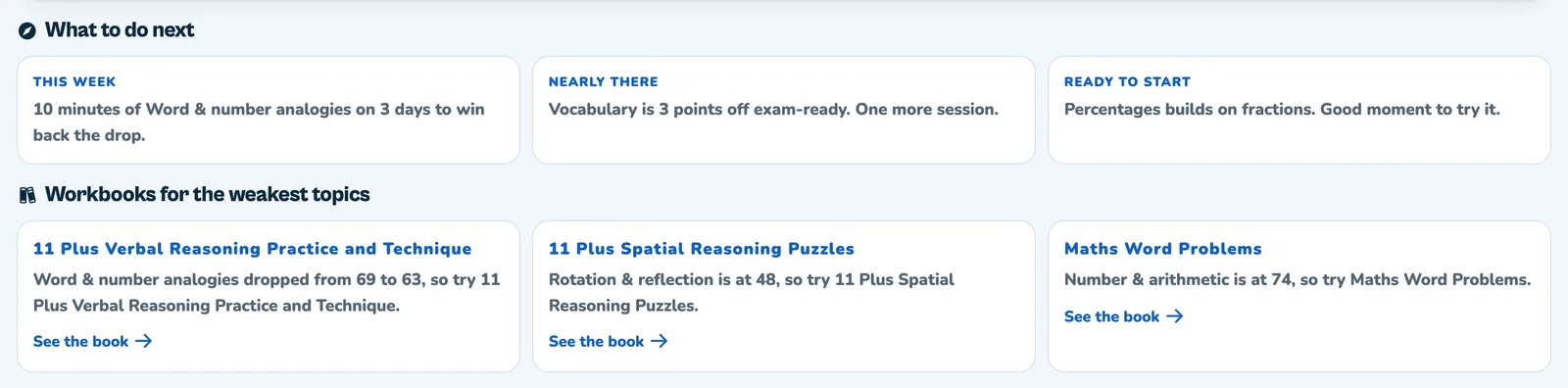
- This week: a small plan to win back a slipping topic, such as 10 minutes on three days.
- Nearly there: the topic closest to exam-ready, and how many sessions it might take.
- Ready to start: a new topic that builds on one your child already knows.
- Workbooks: up to three Pip books matched to the weakest topics, each with a See the book link.
Questions parents ask
Who can use the Pip parent dashboard?+
Every Pip Pro family. Sign in as a parent from Parents' corner in the app, link your children, and the dashboard is ready.
Where do I find Parent sign in?+
Open the Pip app, go to Parents' corner, then Settings. Parent sign in is in the Account section, under your Pip Pro status.
How many children can I link?+
Family Pro covers up to 5 synced learners. The link screen shows how many of your 5 slots are in use.
Can I see the dashboard on my laptop?+
Yes. Once your children are linked, sign in at pip11plus.com/parent-account on any phone, tablet or computer.
What does exam-ready mean on the dashboard?+
A Pip Score of 80 or more in a topic. The charts and the topic table mark that line so you can see what is close.
Why has a topic not appeared yet?+
Progress arrives once the device your child practises on has synced. Topics your child has not tried yet are listed as Not started.
Want to know more about the number behind it all? Read how the Pip Score works.

The Pip team builds Pip, the 11+ and KS2 practice app for children in years three to six. We write these guides from real exam formats and past papers.